|
Remote Desktop Service : Install
2017/02/08 |
|
Install Remote Desktop Service. It can connect to a Server with multi session from remote Computers.
|
|
| [1] |
It needs that the Computer you'd like to install RDS (Remote Desktop Service) is a domain member Server.
(It is not recommended to install RDS in Domain Controller because of security risk or performance reasons.) |
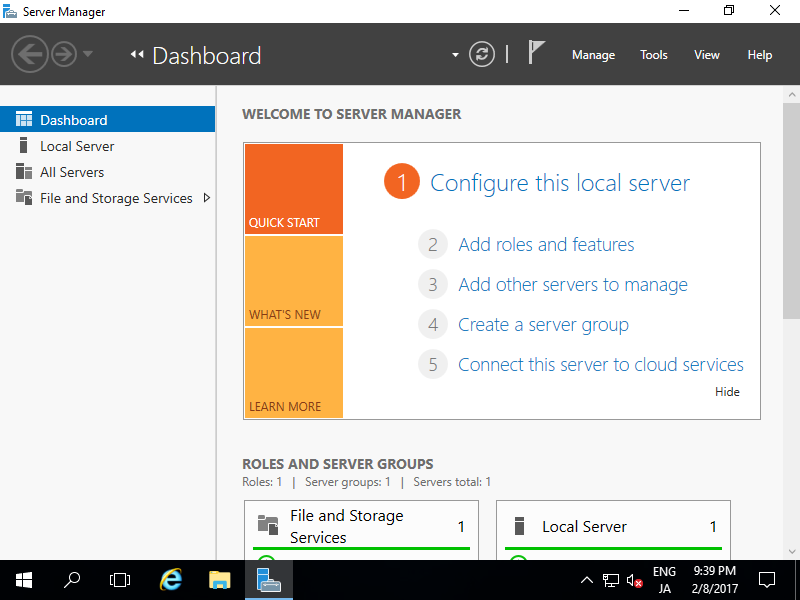
| [2] | Run Server Manager and Click [Add roles and features]. |
|
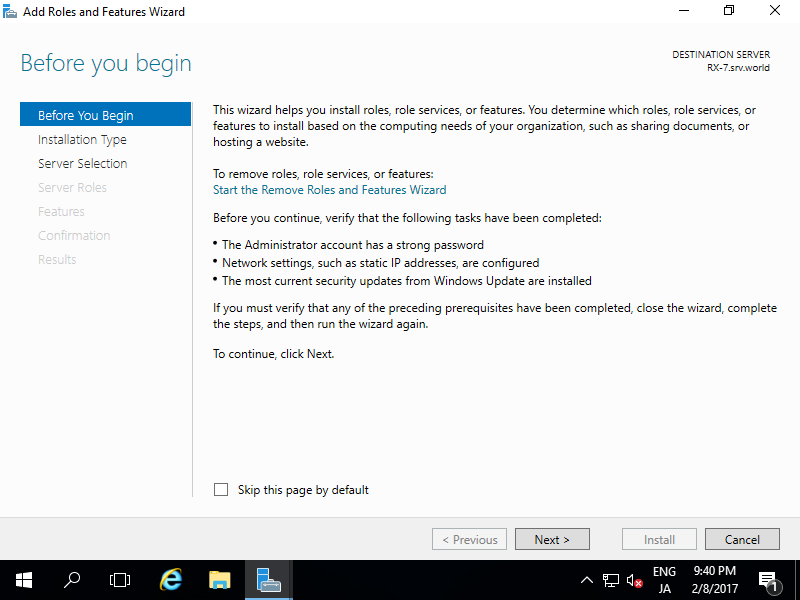
| [3] | Click [Next] button. |
|
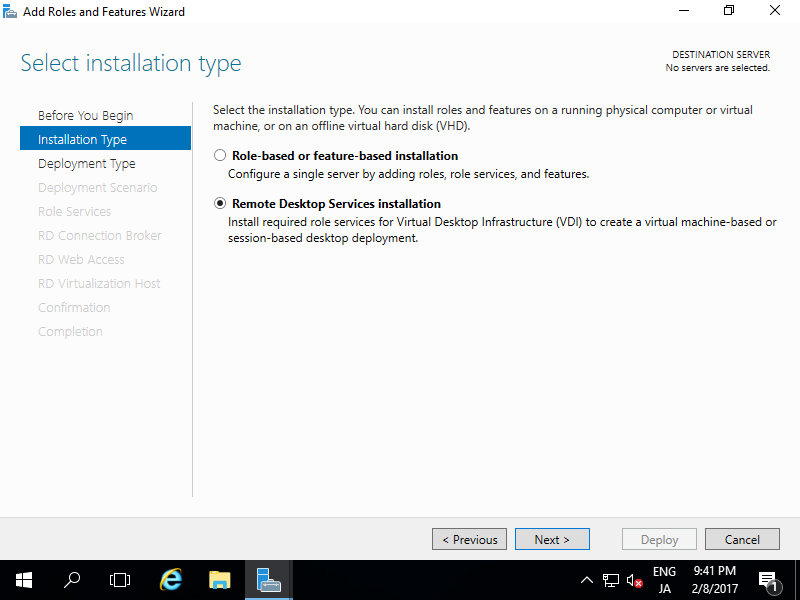
| [4] | Select [Remote Desktop Services installation]. |
|
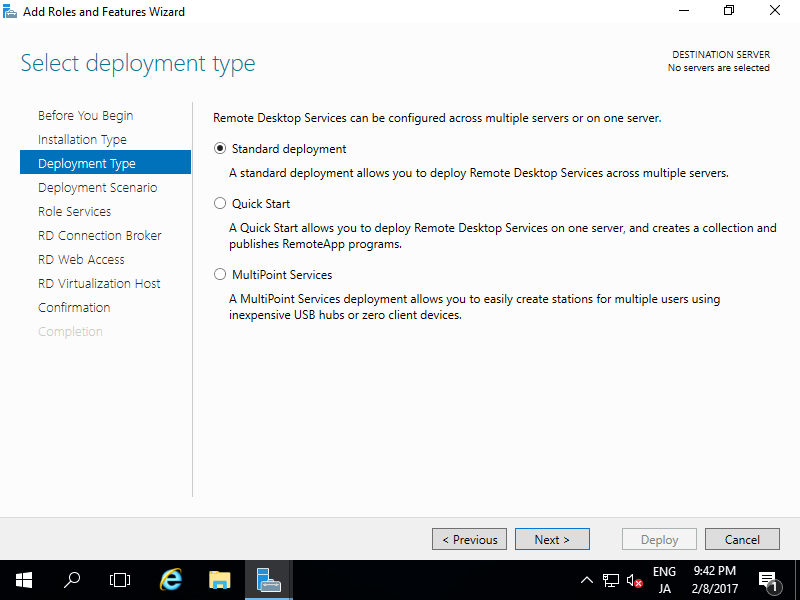
| [5] | On this example, select [Standard deployment] to proceed. |
|
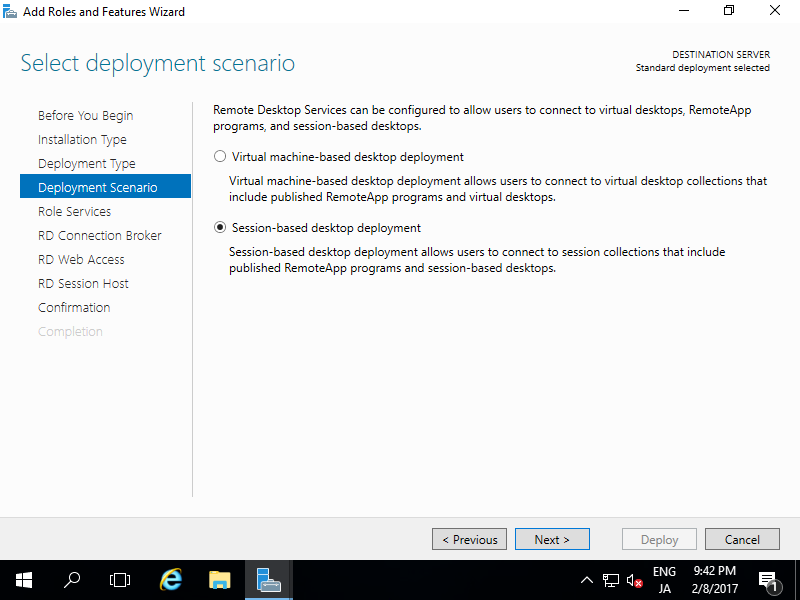
| [6] | On this example, select [Session-based desktop deployment]. |
|
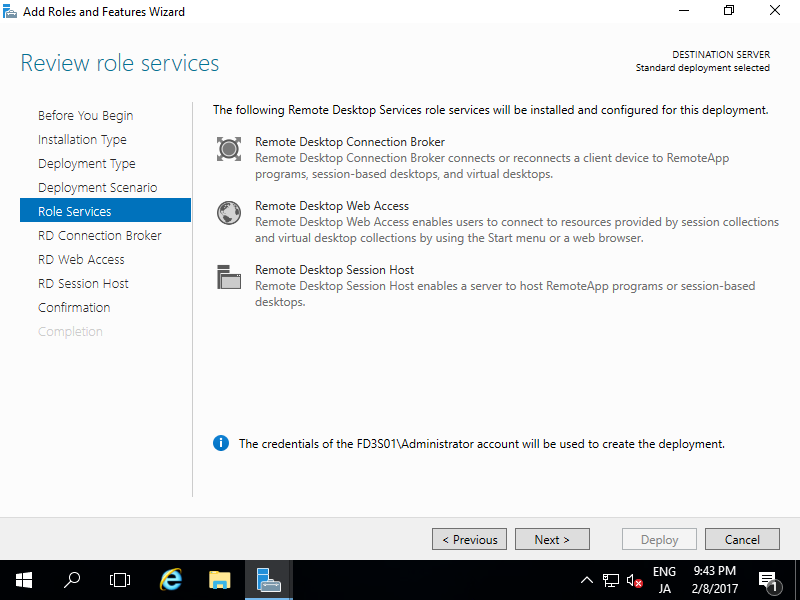
| [7] | Click [Next] button. |
|
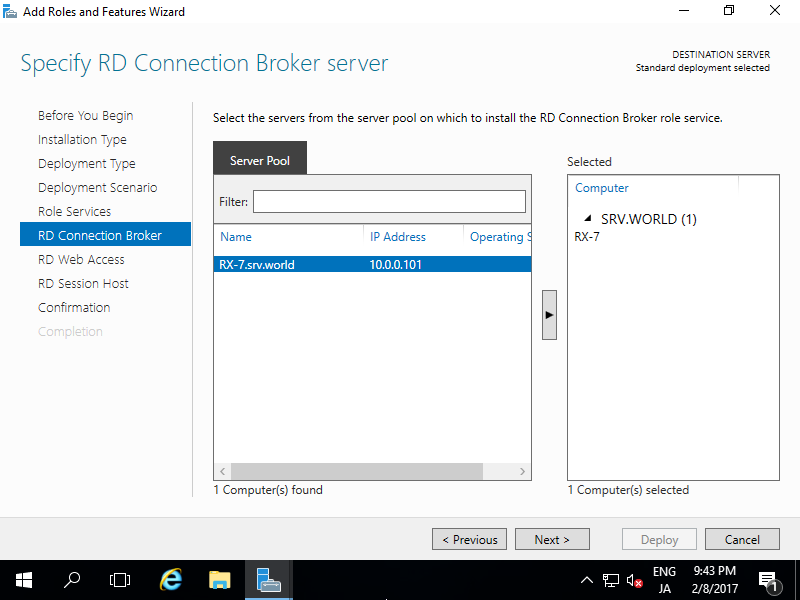
| [8] | Specify Remote Desktop connection broker server. The servers in the Domain are listed, select from it. |
|
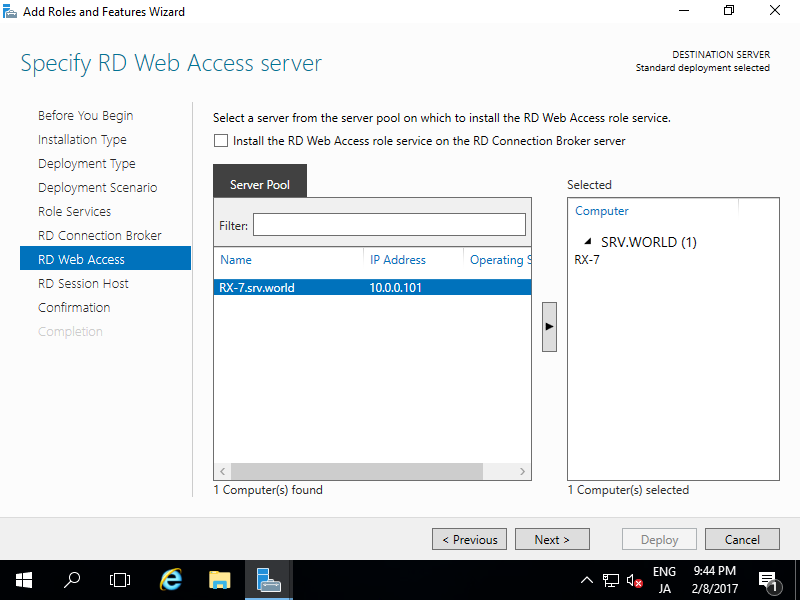
| [9] | Specify Remote Desktop Web Access server. The servers in the Domain are listed, select from it. |
|
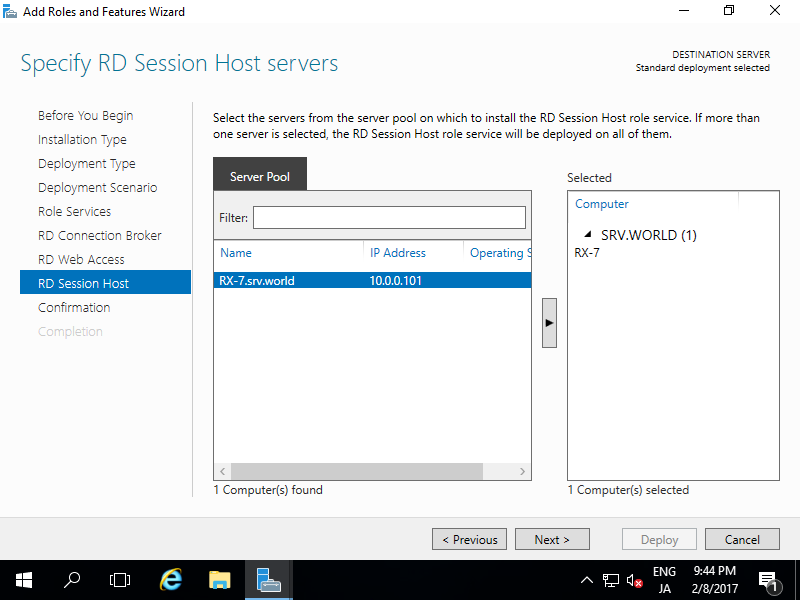
| [10] | Specify Remote Desktop Session Host server. The servers in the Domain are listed, select from it. |
|
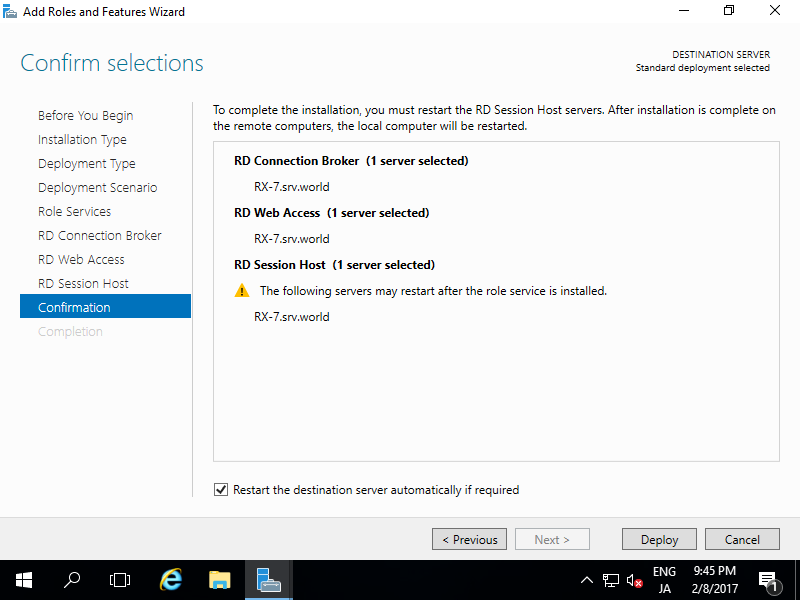
| [11] | Check a box [Restart the destination server automatically if required] and click [Deploy] button. |
|
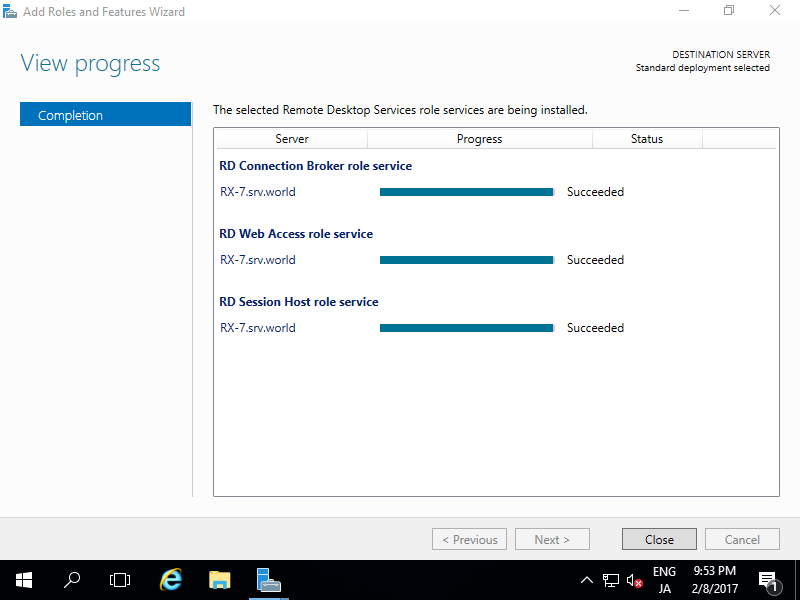
| [12] | During installation, System will restart once. After finishing installation, Click [Close] button. |
|